Fixing Desync Issues in Google Calendar When Booking Across Multiple Time Zones via Calendly
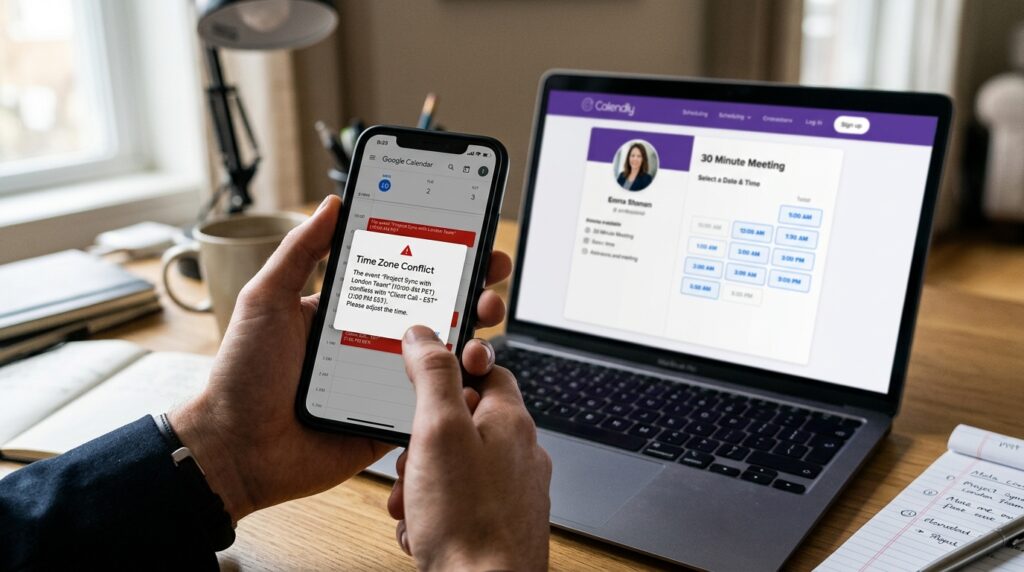
Fixing Desync Issues in Google Calendar When Booking Across Multiple Time Zones via Calendly
It is a typical difficulty for remote teams and global enterprises to manage meetings across several time zones. Certain technologies, such as Google Calendar and Calendly, are intended to ease the process of managing meetings across multiple time zones. Desynchronisation problems, on the other hand, might arise when the time zone settings are not matched properly, which can result in inaccurate meeting times, missed appointments, or scheduling conflicts. These issues often develop as a result of disparities in the settings of the system, modifications made for daylight saving time, or integration incompatibilities across different platforms. When Calendly is used to plan an event, it takes into account both its own internal setup as well as the settings of the Google Calendar that is attached to it in order to come up with the appropriate time. It is possible for inconsistencies to develop if any of the systems is not set correctly. These concerns have the potential to be disruptive to workflows and to harm reputation for professionals who depend on providing correct scheduling. To build changes that are dependable, it is vital to have a solid understanding of the underlying causes of desync. When users align their settings and optimise their integrations, they are able to guarantee that their schedule is consistent throughout all areas. Eliminating mistakes and improving coordination are both benefits of using a planned approach. The ability to accurately manage one’s time is very necessary for sustaining professional efficiency.
This article will explain how Calendly synchronises with Google Calendar.
The integration between Calendly and Google Calendar allows for the reading of availability and the recording of planned events straight into the calendar. As a result of the existing events, it is able to identify both vacant and occupied time slots, and it applies the time zone settings that have been chosen for both the host and the invitee. During the booking process, the system will automatically translate between different time zones, ensuring that every participant is presented with the appropriate local time. Nevertheless, the success of this procedure is contingent on the precise design of both platforms. There is a possibility of conflicts occurring if Google Calendar is configured to a different time zone than Calendly. Real-time data synchronisation is essential to the integration; but, as a result, it may sometimes experience latency or incorrectly interpret settings. The diagnosis of desync problems requires a thorough understanding of this relationship. A seamless scheduling process is ensured by proper alignment.
Both platforms are being checked for their primary time zone settings.
The principal time zone settings that are not compatible with one another are one of the most prevalent reasons of desync. Users are responsible for ensuring that both Google Calendar and Calendly are set up with the same base time zone. The fact that users of Google Calendar are able to choose a main and secondary time zone might lead to confusion if the settings are not handled appropriately. On top of that, the account settings section of Calendly has its very own time zone option. It is possible that planned events will occur at times that are not accurate if these do not match. There is a critical phase in the troubleshooting process that involves verifying and aligning these parameters. Errors in conversion may be avoided by maintaining consistency between platforms. Many problems can be solved with only this one check.
Adjustments to Daylight Saving Time and Their Handling
Daylight saving time changes have the potential to bring up unanticipated schedule inconsistencies, particularly when many participants are located in various locations. Daylight saving time is observed in certain nations while it is not observed in others, which results in a temporary mismatch. It is common for Google Calendar to update itself automatically, however in order to guarantee that the alterations are accurate, Calendly may need human verification. It is possible for events to move forward by one hour if one system updates and the other does not. It is essential to do routine reviews of the time zone settings throughout the transitions between seasons. Having an understanding of the distinctions across regions helps to avoid misunderstanding. The correct management of daylight saving time provides proper scheduling throughout the whole year. In order to coordinate across many time zones, this is an essential component.
Examining the Permissions and Integration of the Calendar
There is also the possibility that inaccurate permissions between Calendly and Google Calendar are the cause of integration problems. There is a possibility that synchronisation will fail or become inconsistent if Calendly does not have complete access to read and write procedures. User accounts should be checked to ensure that they are linked to the relevant Google account and that permissions are provided in their entirety. Reconnecting the integration may often address problems that were previously concealed. Important as it is to make sure that the integration is operational and that it is set correctly. When it comes to the sharing of data across platforms, permissions have a direct impact. It is impossible for synchronisation to perform successfully without the appropriate access. Verification is an essential stage in the process of troubleshooting.
How to Avoid Conflicts When Using Multiple Calendars That Are Connected
Users who connect multiple calendars to Calendly may experience conflicts if time zone settings differ across those calendars. Calendly aggregates availability from all connected calendars, which can lead to inconsistencies if they are not aligned. Ensuring that all linked calendars use the same time zone reduces the risk of desync. It is also important to review which calendars are set to block availability. Misconfigured calendars can create false availability or scheduling conflicts. Simplifying calendar connections can improve reliability. Managing multiple calendars carefully is essential for accuracy. Consistency across all sources is key.
Testing Booking Scenarios Across Different Time Zones
Testing is an effective way to identify and resolve desync issues before they affect real meetings. Users can simulate bookings from different time zones to verify that conversions are accurate. This helps identify discrepancies in how times are displayed and recorded. Testing should include different devices and browsers to ensure consistency. Identifying issues early allows for timely corrections. Regular testing improves confidence in the system. It also ensures that clients and team members experience accurate scheduling. Proactive testing is a best practice for reliability.
Using Buffer Times and Scheduling Rules
Calendly offers buffer times and scheduling rules that can help mitigate the impact of minor synchronization issues. Buffer times add gaps between meetings, reducing the risk of overlap caused by timing errors. Scheduling rules can limit availability to specific hours, ensuring better control over bookings. While these features do not directly fix desync issues, they provide a safety margin. This reduces the likelihood of conflicts. Strategic use of these settings enhances overall scheduling reliability. They act as a backup layer of protection. Proper configuration improves workflow stability.
Maintaining a Consistent Scheduling Workflow
Long-term prevention of desync issues requires a consistent and standardized scheduling workflow. This includes regularly reviewing settings, updating integrations, and ensuring all team members follow the same configuration guidelines. Documentation of best practices can help maintain consistency across teams. Training users on proper setup reduces the risk of errors. Consistency ensures that all systems work together seamlessly. A structured workflow supports accurate scheduling at scale. Maintaining discipline in configuration is essential. This approach ensures reliable performance over time.